There are 2 ways you can do this. The first is simply to drag and drop the emails into the same folders.
If you have a large archive or a lot of folders, the second approach might be easier, which is to export the Archive to a PST file, then import it back into your mailbox.
Important! Before you do this, you will need to co-ordinate with your IT provider so that after you have exported the PST they remove your archive, otherwise when you import the PST back in the mail policies may start to move the imported items back into the archive.
Part 1 – Export
First you’ll need to export your Archive to a PST using Outlook. Note, this might take some time and you will not be able to use Outlook while the export is in progress, so you might want to get this running at the end of the day or switch over to webmail for the duration.
- In Outlook go to File > Open & Export > Import/Export
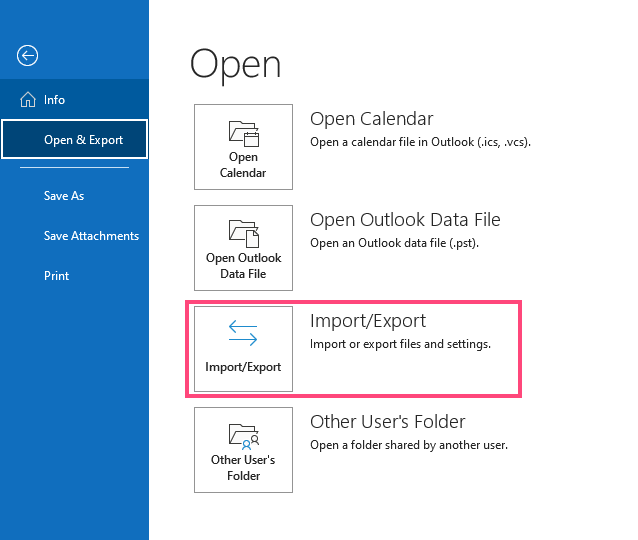
- Export to a File
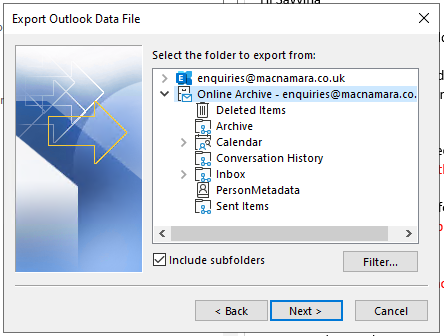
- Choose Outlook Data File (PST)
- Select the Online Archive
- Include subfolders
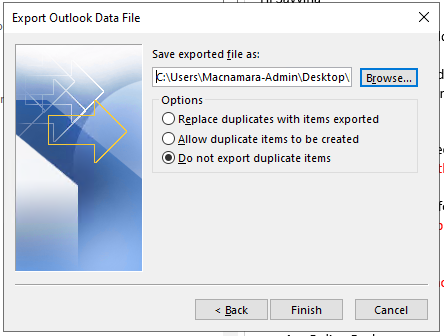
- Choose a location (ideally somewhere not synced with OneDrive)
- Export without duplicates
Once the export has completed, confirm with your IT Department and ask them to remove your Archive.
Part 2 – Import
The next step is to use Outlook again, this time to import the PST file. As before, this process will take some time and you won’t be able to use Outlook while the import is in progress.
- In Outlook go to File > Open & Export > Import/Export
- Import from another program or file
- Choose Outlook Data File (PST)
- Browse to and select the file you exported
- Do not import duplicates
- Make sure your own mailbox is selected in the drop down for importing items into the same folders
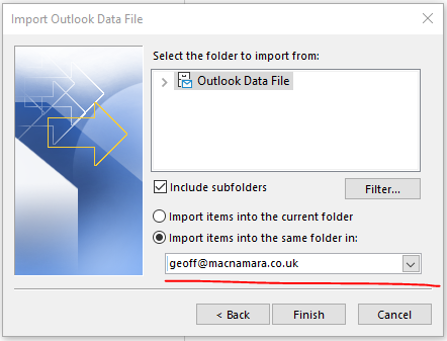
Once you have finished, I recommend that you then delete the PST from your computer.