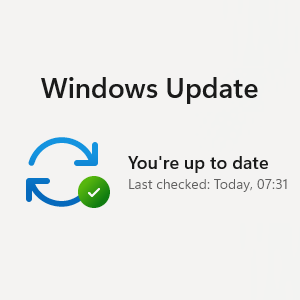
Every month, Microsoft releases important security updates, commonly known as Patch Tuesday, on the second Tuesday of the month. These updates fix security weaknesses, improve stability, and help protect devices and business data from known threats. Microsoft states that security updates are scheduled for that day, although some products may follow a different release schedule.
For most of us, Patch Tuesday is not something you need to manage ourselves. Updates are usually delivered automatically in the background according to your company update policy. But it is useful to know what is happening, why it matters, and what you should do when your device or apps ask for attention.
Most updates are less about features and are usually designed to keep things secure.
Why It Matters
Security updates are not just routine maintenance. They fix known issues that attackers may already be trying to exploit. Operating systems, applications and firmware must be updated in a timely manner to address known security vulnerabilities, and all software and hardware assets should be kept up to date in line with vendor guidance and industry best practice.
For example, a Critical vulnerability could allow malicious code to run without user interaction, including in common situations such as opening an email or browsing a web page. Critical updates should be applied immediately and no later than 7 days, and important updates no later than 14 days.
So while an update prompt may feel like a nuisance, it is actually part of keeping your device compliant, secure and safe to use.
What You Might Notice When Updates Are Being Installed
Most of the time, not much. Windows updates are often downloaded and installed automatically in the background but your device may need a restart to finish the process.
While that is happening, you may notice:
- your laptop feels a little slower for a short time;
- you see a message saying updates are being installed or prepared;
- an app asks you to close and reopen it so the new version can take effect.
In some cases, eligible devices may receive certain Windows security updates without needing a restart at all. Microsoft calls this hotpatching and these updates can take effect without a restart while still keeping the device secure.
What Happens When Your PC Needs To Restart
Some updates are not complete until the device restarts. Windows will try to restart when you are not using the device, and if that is not possible, you may be asked to schedule a restart for a more convenient time. Microsoft also provides active hours settings (which can be controlled by your IT Support provider) so automatic restarts are less likely to happen while you are working.
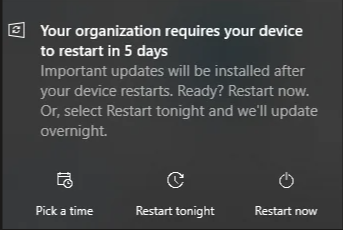
If you get a restart prompt, the best thing to do is:
- save your work;
- close anything important;
- restart as soon as practical.
Delaying a restart for too long can leave the update only partially applied, which means the device may not yet be fully protected. Some updates DO require a restart for the update to take effect. Delaying for too long can also cause the device to run increasingly slowly or erratically.
How your organisation has configured your company Windows Update policy determines what options you have around restarting your device.
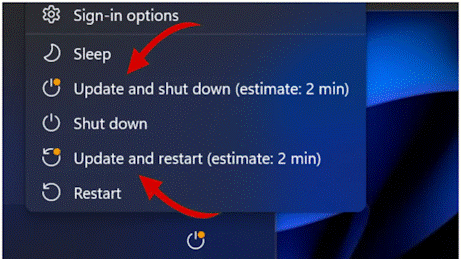
Need More Time? You Can Pause Updates (Briefly)
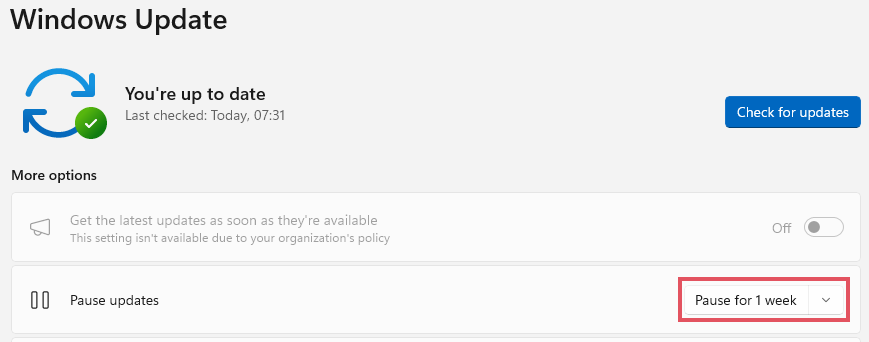
If you are in the middle of something important, Windows may give you the option to pause updates temporarily rather than install them straight away. In Windows 11, go to Start > Settings > Windows Update and choose a pause length or pick a date to resume updates (but if this is not available then your organisation may have removed this option.)
This can be super helpful if you are travelling, presenting, or trying to avoid interruptions for a short period. But it is only a temporary delay, not a way to avoid updates altogether. Updates resume automatically when the pause ends, and once the pause limit is reached, you need to install the latest updates before pausing again.
Note that this is something you will need to switch on in advance. Once updates are installed and the device is prompting a reboot, you can only delay the restart not the installation itself. But, if you know you will be travelling, presenting, or using a limited data connection on or around Patch Tuesday, it can be useful to head off any disruption.
What If Just Edge Or Teams Needs To Restart?
Not every update means rebooting your whole device. Sometimes it is only the app that needs to restart.
Edge
Edge may prompt you to restart the browser to apply a pending update, and shows an icon in the toolbar to indicate a relaunch is needed. It also says your session is restored when Edge restarts, so your tabs should normally come back.

Teams
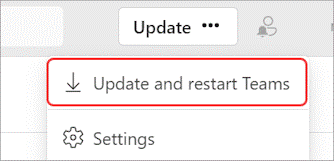
The Teams desktop app updates automatically when an update is available and the app is idle. If you choose Update and restart Teams, the app closes, updates, and then reopens.
So if Edge or Teams asks to restart, that is usually a sign the update is ready to finish installing – not that anything has gone wrong.
What You Should Do
- Do not ignore update prompts for days on end.
- Save your work and restart when prompted.
- Let apps relaunch if asked.
- Keep your laptop plugged in if possible.
- If something seems stuck or repeatedly fails, report it.
Final Thought
Patch Tuesday may sound technical, but the idea is simple: small interruptions now help prevent much bigger problems later. A quick restart, a reopened browser, or a refreshed Teams app can be the difference between a secure, compliant device and one that is missing important protection. That is why these updates matter, and security is all of our responsibilit