How to copy Office Auto Correct Customisations to a new PC

Spelling and grammar phrase
Over time, you may start to build up a nice set of Auto Correct customisations and shortcuts in Office on your PC. If you are setting yourself up on a new PC, or perhaps even just a new profile for a PC migration (for example from a Server Domain to Microsoft 365 Azure AD) then you’ll want to take any customisations you have made with you.

Auto Correct is a great proofing tool if, like me, your typing method is based more around speed than accuracy! But it can take some time to customise to your liking or your locale. You can even use it to automatically paste common phrases, sentences or even whole paragraphs of text that you frequently use.

Exporting your settings is easy. In addition, you might want to consider doing the same with your browser history and saved passwords. See the guides at the end of this article.

Export and Import your Settings

Open the Run box or a new Windows Explorer window and copy and paste the following path: %appdata%\Microsoft\Office
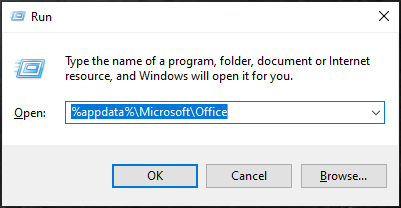
Run
Run the command

You will see one or more ‘Auto Correct List Files’. Copy these to a place you’ll be able to access them on your new PC, such as OneDrive

Paste the files on the new PC

Then, on your new PC or profile, open the same location and paste the files into the same location, overwriting the existing files.

Your customisations have now been copied!

Copy your Browser Data too!

See the following guides on how to also sync your browser history, shortcuts and passwords to your new PC:

Set up Edge Sync

Set up Firefox and Chrome Sync

Further reading

Dangers of CEO Fraud

CEO Fraud: Don’t Let It Be You

CEO fraud is a highly targeted scam where criminals impersonate senior leaders to pressure staff into making payments or sharing sensitive information. This article explains how these attacks work, the warning signs to look out for, and the practical steps organisations can take to reduce the risk through awareness training, strong approval processes, MFA and regular security reviews.

Read More »
Copilot Studio

Getting Started with Copilot Studio

Artificial Intelligence is becoming a major part of modern business, and more organisations are starting to look at AI not only as a trend, but as a real productivity tool. One of Microsoft’s most powerful platforms in this space is Copilot Studio.

Read More »