How To Change Outlook Settings: View Settings

Outlook
Whether you want to sort emails by date, categorize them, or filter them by sender, changing your view settings can enhance your productivity. With just a few simple steps, you can easily configure your view settings in Outlook to optimize your email workflow and stay organised.

In this short guide we will cover the following features:

  • Resetting Your Outlook View
  • Saving A Personalised View in Outlook

Resetting Your Outlook View

If your view settings have changed, it’s sometimes easier to start again.

Open Microsoft Outlook on your computer. Once the application has launched, you should see the Inbox view by default.

At the top of the screen, click ‘View’ from the ribbon of tabs.
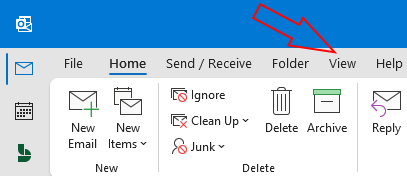
Select the View tab
Select the View tab

From within the ‘View’ menu you will see the option to “Reset View”. Click then choose ‘Yes’ to confirm you want to reset the view.

Click Reset View
Click Reset View
Click Yes to confirm

There you have it, in a few simple steps you have “Reset” the layout of the view that is currently selected for viewing your outlook emails.

Saving a Personalised View In Outlook

Similar to ‘Resetting’ the view in Outlook, there is also an option to ‘Save Current View As a New View’ which is a useful feature to ensure you can always revert to a view that you have created and become familiar with, should you ever need this.

To do this, firstly ensure you are happy with the current view that you have in Outlook and then navigate to the ‘View’ tab again.

Select the View tab
Select the View tab

Choose ‘Change View’ (1) and the option will expand with some additional settings to choose from. Next you need to click ‘Save Current View As a New View’ (2).

Click Change View then Save As

Once you have clicked on this option, a dialog box will appear:

Give the view a name

Choose a custom name for this view ‘Macnamara View’ in this example. Finally, choose 1 of the 3 options for where the view can be used. In this example we are choosing ‘All Mail and Post Folders’.

That’s it, all done! If you look in the ‘View > Change View’ menu you should see your newly created view which you can use whenever you need.

Want more Office tips? Check out our other How To guides here.

Further reading

AI Comparison

AI Chatbots Comparison – Not All The Same

In recent years, AI has transitioned from a term used rarely to hearing it used in almost every conversation. Studies have shown that one in six organisations in the UK use AI in the workplace. This is because AI can automate tasks like drafting emails, summarising meetings and generating report. Some AI models are ‘multimodal’, meaning they can work with text, images, voice and video, while others are ‘unimodal’, built for one type of input like just text.

Read More »

(How To) Start Your Day With A Coffee, Not Your Inbox

Every morning starts the same way: open the inbox, scroll through messages, try to figure out what actually matters. Instead of spending the first 30 minutes reading emails, I built a simple morning assistant that gives me a quick inbox briefing. Now I know exactly what needs attention — before my coffee even gets cold.

Read More »

Copilot 365 Agents and Your Company Data

Most companies already have big amounts of data stored across Microsoft 365 — in SharePoint sites, Excel files, Word documents, and presentations. The challenge is not access to data, but the time it takes to work with it. This project looks at how Copilot 365 agents can help turn existing company data into usable insight faster.

Read More »