How to Remove Saved Passwords From Web Browsers

Browsers
Web browsers make it convenient to save passwords for easier online access. However, there may be times when you want to remove saved passwords for security or privacy reasons, or perhaps simply because they have expired. This guide will show you how to do that in three popular web browsers: Microsoft Edge, Google Chrome, and Mozilla Firefox. By following these steps, you can keep your sensitive information secure and up to date.

Microsoft Edge

Open Microsoft Edge and look for three dots (…) in the top-right corner. Click on the dots and select “Settings” from the menu.
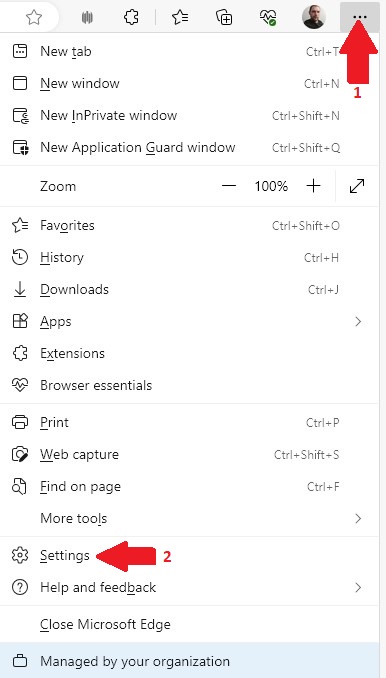
Go to Settings
Go to Settings

Select Profiles at the left pane and choose Passwords
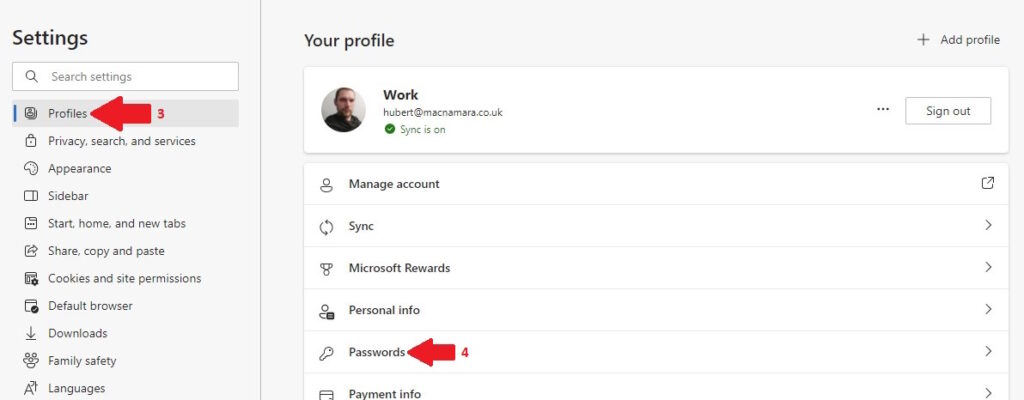
Under Profiles select Passwords

You’ll see a list of saved passwords under the “Saved Passwords” section. To remove a password, find the three dots (⋯) next to it and choose “Delete.”
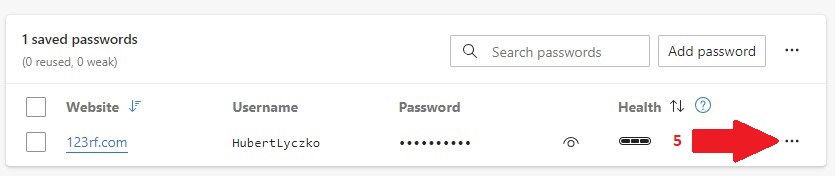
Click the ... dots
Click the … dots
Choose Delete
Choose Delete

Google Chrome

Open Google Chrome and locate the three dots (…) in the top-right corner .Click on the dots and select “Settings” from the options.
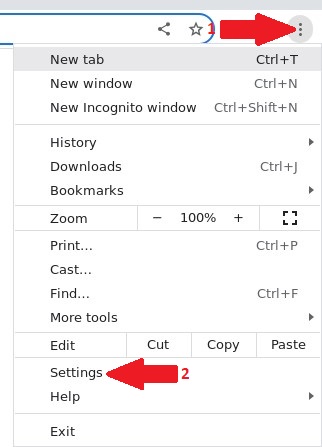
Go to Settings
Go to Settings

Find “Autofill And Passwords” at left pane, Select it and choose “Password Manager”
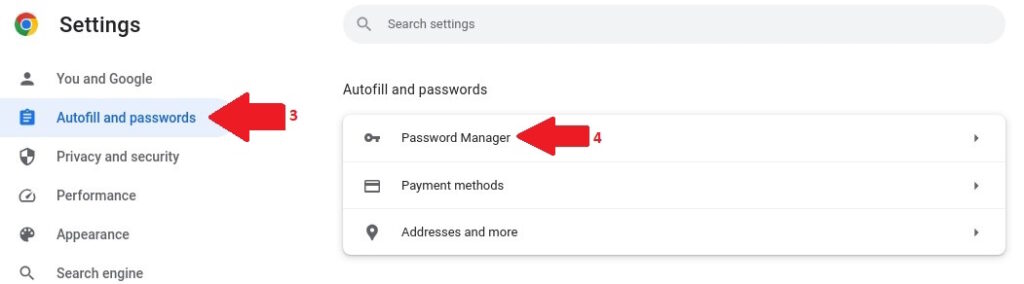
Go to Autofill and Passwords > Password Manager

You’ll find a list of saved passwords. Select the profile from which you wish to remove the saved password and choose Delete.
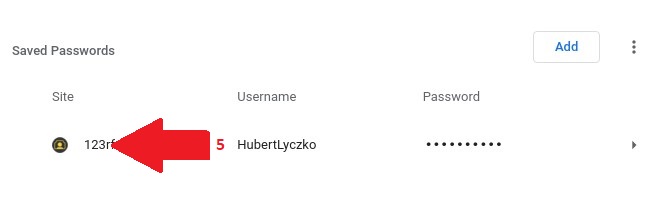
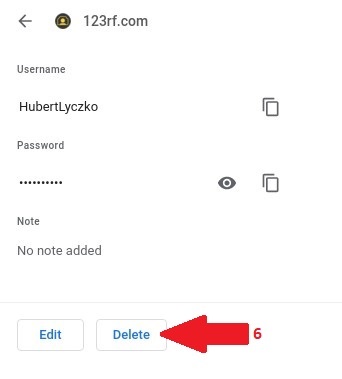
Select the password to delete
Delete
Delete

Mozilla Firefox

Open Mozilla Firefox and look for the three horizontal lines (☰) in the top-right corner. Click on the lines and select “Settings” from the menu.

Go to Settings
Go to Settings

In search box type “Password” , find “Login and Passwords” and select “Saved Logins”

Search for 'Password' and go to Saved Logins
Search for ‘Password’ and go to Saved Logins

At the left pane you’ll see a list of saved passwords. To remove a password, choose a profile and click “Remove”
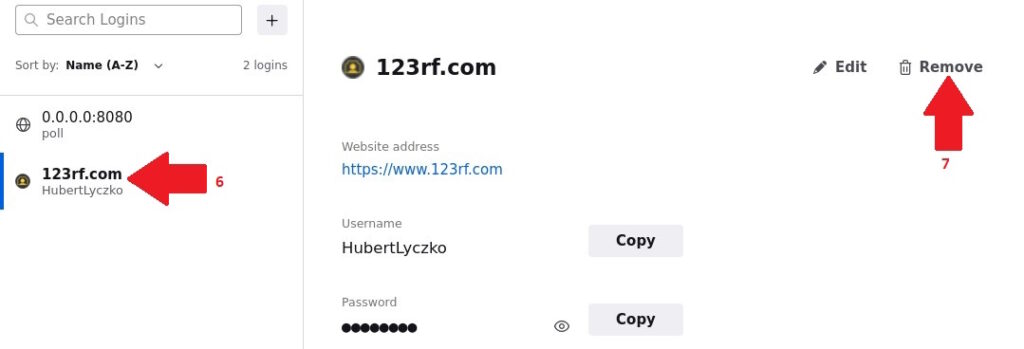
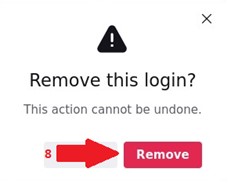
Select the password then choose Remove
Confirm removal
Confirm removal

By following these simple steps, you can easily remove those unnecessary saved passwords from your web browsers. It’s a great way to tidy up your browsing experience and maintain security. Just remember, you’ll have to manually enter these passwords again when you visit websites that require authentication.

More browser tips? Check out our blog on web privacy Better Web Privacy – Browsers, Trackers & Blockers

To transfer your browser settings across multiple devices, see Setting Up A Sync Account in Firefox and Chrome and also Edge

Further reading

Dangers of CEO Fraud

CEO Fraud: Don’t Let It Be You

CEO fraud is a highly targeted scam where criminals impersonate senior leaders to pressure staff into making payments or sharing sensitive information. This article explains how these attacks work, the warning signs to look out for, and the practical steps organisations can take to reduce the risk through awareness training, strong approval processes, MFA and regular security reviews.

Read More »
Copilot Studio

Getting Started with Copilot Studio

Artificial Intelligence is becoming a major part of modern business, and more organisations are starting to look at AI not only as a trend, but as a real productivity tool. One of Microsoft’s most powerful platforms in this space is Copilot Studio.

Read More »