Let us just be clear from the start – it is ALWAYS a good idea to password protect sensitive data! Indeed, everything in your company is sensitive, and probably everything personal to you too. Unless you’re willing to put it up online for the whole world to see, you should have some sort of password in front of it.
But the way you protect something is important, because in certain cases having a password is not such a good idea. Here, we’ll look at a specific scenario of protecting an Office file.
Scenario
You have a spreadsheet with some sensitive financial data on it, company accounts for the last year, and you’ve spent hundreds of hours on it. You need to share it with your accountant who works externally. Being security conscious, you put a password on it before you send it, just in case someone got hold of it (you of course send the password via a different channel).
If you’ve done this before, you will see the following message. While it does say something is important, it doesn’t quite go far enough in my opinion, and encourages something we’ve always said you should never do!
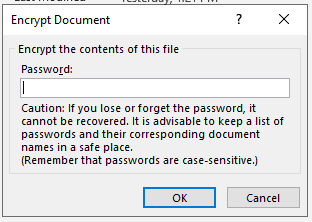
The key line here is “Caution: If you lose or forget the password, it cannot be recovered”. This is important – the password only exists in the document; it cannot be reset by an administrator or anyone else. If you do password protect a document to send it to someone, do make sure you have protected a copy of it that you are sending, not the original.
The next part of the warning leaves me feeling a bit uncomfortable – you should not keep a list of passwords anywhere outside of a password manager, and that’s not really a list. If you’re only sending the spreadsheet as a one off there’s no need to keep a record of it anywhere, just send it via a text message or another secure method (which means, don’t just email it separately to the same address).
Problem
Keeping a list of passwords is not ideal. Always use a password manager (see links at the end). But there’s more. If you’re using modern Office 365 Services like OneDrive, SharePoint, or Teams, Office applications work well together, allowing concurrent collaboration, auto saving, and much else. If you password protect your Office documents stored in these locations, they don’t work properly!
Putting a password on a document, spreadsheet, presentation, or other Office file, encrypts it. This means that OneDrive (the sync application) cannot autosave your changes. You must remember – and who doesn’t sometimes forget – to manually save as you go.
But, more than this, that same autosave is part of what allows multiple contributors to work on a document together, at the same time. The result is that only one person can work on it at a time. Conflicts are resolved easily, and where there is a problem you get a clear path to review. Now, at first, this doesn’t seem to matter because we’re used to working on things by ourselves, but the more you start utilising the fact that you can review the same document with colleagues at the same time, you’ll realise how powerful this is.
Password protecting a document also prevents you opening it on the web for quick review or editing. You have to use the desktop version of the app.
There’s another problem. If you work on a document, and make changes, even if you save them there is a chance that someone else may open it before those changes have synced (remember, no live syncing if you’re opening from Explorer on your PC or Laptop). This means that potentially someone else could open an older synced version of the document, choose their version over yours, and you lose everything.
Solution
All of this can be avoided by protecting the location of the file, rather than the file itself. Yes, there are situations where you might need to send a password protected version to someone. In that case, fine, just make a protected COPY of the file and send that. Always send the password through a separate medium, like SMS.
But, by protecting the location of the file you avoid all the pitfalls of breaking modern application collaborative working and auto saving functionality. Access rights set centrally, are consistent, and easily audited. Passwords, sufficiently protected by 2FA and strong password policies, can be easily changed and accounts locked out in the event of a breach. A password set on a document is subject to zero complexity requirements, zero central management, and zero auditing.

If you share a file using OneDrive or SharePoint (permissions permitting) then you can set an expiration date, read only access, block download, or additionally protect access using a PIN or other secure authentication. Access is easily removed. There’s no need to apply file specific permissions at all, and you keep control of the file.
Summary
Protecting your data is critical. But think about access to the one single version of the document you have and want to keep, rather than thinking about protecting multiple copies, all of which, once you’ve sent them, are out of your control.
PC Mag: The Best Password Managers of 2020
If you would like to know more please get in touch.